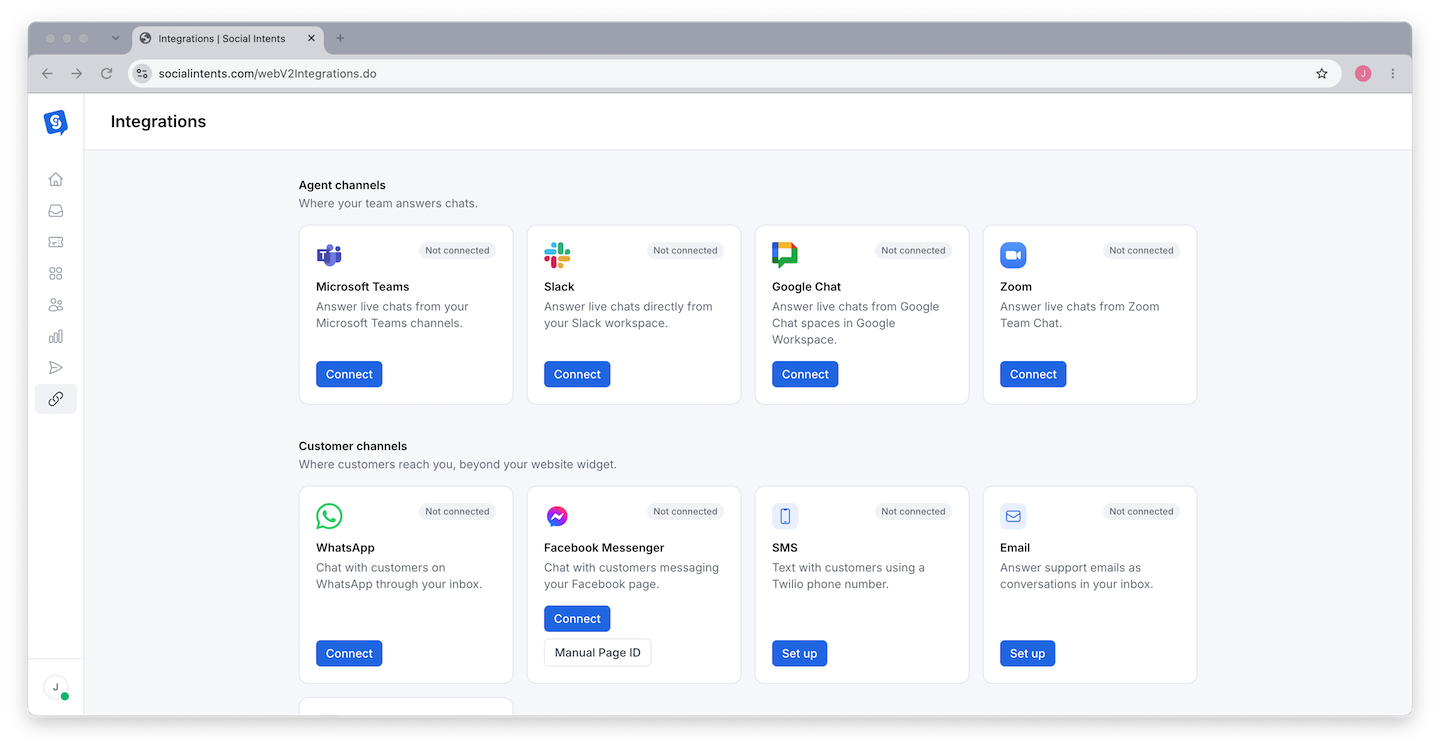
Social Intents lets your support and sales teams respond to live website chats from the collaboration platform they already use every day. Instead of learning a new tool or keeping another browser tab open, agents reply to visitor messages directly from Microsoft Teams, Slack, Google Chat, Zoom, or Webex. Below you will find how each platform works with Social Intents, when to choose each one, and how to set up multi-platform routing for larger organizations.
How Agent Integrations Work
When a visitor starts a live chat on your website, Social Intents sends the message to your team's collaboration platform in real time. A new conversation thread is created in the channel or space you designate, and any team member in that channel can respond. Their reply appears instantly in the visitor's chat widget on your website.
This bridge between your website and your team platform runs continuously. Messages, file attachments, and formatted text all synchronize in both directions. Your agents get native notifications on desktop and mobile through their platform's built-in notification system, so they never miss a conversation even when they are away from their desk.
The key benefit of this approach is zero context switching. Your team does not need to monitor a separate dashboard or keep a dedicated chat tool open. They respond to website visitors in the same tool where they discuss projects, share files, and coordinate with colleagues.
Platform Comparison at a Glance
Use this matrix to quickly compare the five supported platforms across the features that matter most for live chat support:
| Feature | Microsoft Teams | Slack | Google Chat | Zoom | Webex |
|---|---|---|---|---|---|
| AI Chatbot Support | ✅ Full | ✅ Full | ✅ Full | ✅ Full | ✅ Full |
| Escalation Routing | ✅ Multi-channel | ✅ Multi-channel | ✅ Multi-space | ✅ Channel-based | ✅ Space-based |
| Video Escalation | ❌ | ❌ | ❌ | ✅ Zoom video call | ✅ Webex video call |
| Mobile App | ✅ iOS & Android | ✅ iOS & Android | ✅ iOS & Android | ✅ iOS & Android | ✅ iOS & Android |
| Desktop Notifications | ✅ Native | ✅ Native | ✅ Native | ✅ Native | ✅ Native |
| Threaded Conversations | ✅ | ✅ | ✅ | ✅ | ✅ |
| File Sharing in Chat | ✅ | ✅ | ✅ | ✅ | ✅ |
| Rich Text Formatting | ✅ Markdown + rich editor | ✅ Markdown | ✅ Basic | ✅ Basic | ✅ Basic |
| Admin Permissions Required | Teams admin or owner | Workspace admin | Workspace admin | Account owner | Account admin |
| Best For | Enterprise, Microsoft 365 orgs | Tech companies, startups | Google Workspace orgs | Sales demos, consultations | Cisco enterprise orgs |
When to Choose Each Platform
Microsoft Teams
Best for: Organizations that use Microsoft 365 as their primary collaboration suite, enterprises with strict compliance requirements, and teams that need advanced departmental routing.
Microsoft Teams is the most popular integration among Social Intents customers, and for good reason. If your team already communicates in Teams channels, adding live chat requires no behavior change at all. Chat conversations appear as threaded messages in your chosen channel, and agents respond using the familiar Teams interface on desktop, web, or mobile.
Teams excels at enterprise-scale deployments. You can route different types of chats to different Teams channels - sales inquiries to the Sales channel, technical questions to Engineering, billing questions to Finance. Combined with AI-powered escalation routing, the right team always gets the right conversations without manual triage.
Key advantages:
- Deepest integration with the Microsoft 365 ecosystem - SSO, directory sync, and compliance controls built in
- Enterprise-grade security with SOC 2, HIPAA, and FedRAMP compliance certifications
- Most mature multi-channel escalation routing - route chats to specific Teams channels based on topic, department, or visitor attributes
- Largest installed base - over 320 million monthly active users means your team almost certainly already has it
- Rich formatting in agent responses including bold, italic, lists, and code blocks
- Strong mobile app with push notifications for on-the-go support
Considerations: Requires a Microsoft 365 subscription (Business Basic or higher). The Teams admin or a team owner must authorize the Social Intents bot during setup.
Setup guide: Connect Social Intents to Microsoft Teams
Slack
Best for: Technology companies, startups, digital agencies, and distributed teams that live in Slack throughout the workday.
Slack is the second most popular integration, especially among tech-forward companies. If your team already uses Slack for internal communication, adding Social Intents means website chats show up right alongside your other conversations. Slack's fast, lightweight interface and excellent notification system make it an ideal choice for high-volume chat operations.
Slack's threading model works perfectly for live chat. Each visitor conversation becomes its own thread in a dedicated channel, keeping your channel organized even during busy periods. Agents can use reactions to signal status (like adding a ✅ when a chat is resolved), and Slack's search makes finding past conversations easy.
Key advantages:
- Fast, lightweight interface optimized for real-time communication and quick responses
- Excellent notification system with granular controls - set different alert levels for different channels
- Simple setup - authorize the Slack app and pick a channel, done in under two minutes
- Strong search functionality for finding past chat transcripts and conversations
- Works exceptionally well for distributed and remote teams across time zones
- Rich app ecosystem - combine with other Slack apps for workflow automation
Considerations: Requires a Slack workspace (free or paid). On the free Slack plan, message history is limited to 90 days, which can affect access to older chat transcripts within Slack (though Social Intents retains all transcripts in the dashboard regardless).
Setup guide: Connect Social Intents to Slack
Google Chat
Best for: Organizations that use Google Workspace (Gmail, Google Drive, Google Calendar, Google Meet) as their primary productivity suite.
If your team lives in the Google ecosystem, Google Chat keeps everything in one place. Chat conversations appear in Google Chat spaces, and agents respond from the same interface where they message colleagues. The Google Chat app is available on desktop and mobile, and it integrates natively with Gmail - you can see and respond to chats alongside your email.
Key advantages:
- Native integration with the entire Google Workspace ecosystem - Gmail, Drive, Calendar, and Meet
- Clean, simple interface that is easy to learn and use
- Strong mobile support through the Google Chat app on iOS and Android
- No additional software required if your team already uses Google Workspace
- Spaces provide organized conversation management with built-in threading
- Smooth handoff to Google Meet for video calls when needed
Considerations: Requires Google Workspace (Business Starter or higher). The Google Workspace admin must approve the Social Intents Chat app from the Marketplace during initial setup.
Setup guide: Connect Social Intents to Google Chat
Zoom
Best for: Sales teams that want to escalate from text chat to video demos, consulting firms, healthcare practices, and any team where face-to-face conversation adds value.
Zoom's unique advantage is video escalation. When a text chat needs a deeper conversation - a product demo, a technical walkthrough, or a sensitive discussion - your agent can invite the visitor to join a Zoom video call with one click. The visitor does not need a Zoom account; they click a link and join directly from their browser.
Text conversations before the video call are handled through Zoom Team Chat, so your team has a single platform for both text and video interactions with website visitors.
Key advantages:
- Video escalation - go from text chat to a face-to-face Zoom video call with one click
- Ideal for sales demos, product walkthroughs, consultations, and complex support cases
- Visitors join video calls without needing a Zoom account - just a browser link
- Zoom Team Chat handles all text conversations in a familiar interface
- Record video escalation calls for training, compliance, or follow-up
- Screen sharing during escalated calls for visual troubleshooting
Considerations: Requires a Zoom account (free or paid). Video escalation requires a paid Zoom plan. Zoom Team Chat is available on all plan tiers.
Setup guide: Connect Social Intents to Zoom
Webex
Best for: Enterprise organizations that use Cisco Webex for collaboration, companies with Cisco networking infrastructure, and teams in regulated industries that rely on Cisco's compliance certifications.
Webex offers the same video escalation capability as Zoom, with the added benefit of Cisco's enterprise security and compliance framework. Chat conversations appear in Webex spaces, and agents can escalate to Webex video meetings when a conversation needs face-to-face interaction.
Key advantages:
- Video escalation to Webex meetings for complex conversations
- Enterprise-grade security with Cisco's end-to-end encryption and compliance certifications
- Integrates into existing Cisco and Webex infrastructure without adding new vendors
- Strong compliance features for regulated industries (financial services, healthcare, government)
- Webex spaces keep conversations organized with rich threading and file sharing
Considerations: Requires a Webex account. Video escalation requires a paid Webex plan. Most useful for organizations that already have Cisco/Webex infrastructure in place.
Setup guide: Connect Social Intents to Webex
Using Multiple Platforms Simultaneously
Social Intents supports connecting multiple platforms at the same time. Each chat widget can be connected to a different platform and channel, giving you precise control over how conversations are routed across your organization. This is especially useful for larger companies with different departments using different tools.
Common Multi-Platform Configurations
Here are real-world examples of how teams use multiple integrations:
- Sales on Slack, Support on Teams: Your sales widget sends chats to a Slack channel called
#inbound-leadswhere your sales team works. Your support widget sends chats to a Microsoft Teams channel calledCustomer Supportwhere your support team operates. Each team uses their preferred tool without compromise. - Text support on Slack, Video demos on Zoom: Your main support widget connects to Slack for fast text-based support. A separate "Book a Demo" widget connects to Zoom so sales reps can instantly escalate to video presentations.
- Regional offices on different platforms: Your US office uses Microsoft Teams while your EU office uses Google Chat. Each region has widgets routing to their respective platform.
You can also use AI-powered escalation routing to route different conversation topics to different channels within the same platform. For example, your AI chatbot can detect that a visitor is asking about billing and route them to the #billing-support channel, while technical questions go to #engineering-support.
Decision Framework: How to Choose
If you are still deciding, answer these four questions:
1. Where does your team already spend the most time?
This is the single most important factor. The whole point of Social Intents is meeting your team where they already work. If they have Slack open all day, choose Slack. If they live in Teams, choose Teams. If they use Google Workspace, choose Google Chat. The best platform is the one your agents will actually monitor and respond from quickly.
2. Do you need video escalation?
If you want visitors to be able to join a video call directly from the chat widget - for sales demonstrations, product consultations, onboarding sessions, or complex technical troubleshooting - choose Zoom or Webex. These are the only platforms that support one-click video escalation from the chat widget. The other platforms support text-based chat only.
3. How many departments will handle chats?
If multiple departments will respond to chats (sales, support, billing, engineering), you need strong routing capabilities. Microsoft Teams and Slack have the most mature multi-channel routing, making them ideal for departmental setups. All platforms support basic routing, but Teams and Slack offer the most flexibility for complex routing rules.
4. What are your compliance and security requirements?
All five platforms offer strong security. For organizations with specific regulatory needs, Microsoft Teams offers the broadest compliance certifications (SOC 2, HIPAA, FedRAMP, GCC High). Webex is the strongest choice for organizations already invested in Cisco's security infrastructure. Evaluate each platform's compliance posture against your specific requirements.
Switching or Adding Platforms Later
Changing your integration is straightforward and does not disrupt your setup. When you switch platforms, your widget settings, AI chatbot configuration, appearance customizations, and chat history are all preserved. Only the destination for incoming chats changes.
To switch integrations:
The entire switch takes less than five minutes and your widget continues working throughout the process. There is no downtime for your visitors.
Frequently Asked Questions
Do visitors need to install anything to chat?
No. Visitors chat through the widget on your website using their browser. They do not need to install any software, create an account, or download an app. The chat widget works in all modern browsers on desktop and mobile devices.
Can different agents use different platforms?
Not within a single widget. Each widget connects to one platform and one channel. However, you can create multiple widgets - one connected to Slack for your sales team and another connected to Teams for your support team. Each widget has its own embed code that you place on the appropriate pages of your website.
What happens to chats if I disconnect a platform?
Past chat transcripts are preserved in your Social Intents dashboard regardless of which platform you use. Disconnecting a platform only stops new chats from being routed there. If you have an AI chatbot enabled, it will continue responding to visitors even while no platform is connected - you just won't receive human escalations until you connect a new platform.
Does the platform I choose affect AI chatbot performance?
No. The AI chatbot runs on Social Intents' infrastructure regardless of which team platform you use. Chatbot performance, response quality, and training content are completely independent of your integration choice. The platform only determines where human agent escalations are delivered.
Can I use Social Intents without connecting any team platform?
Yes, if you are using an AI chatbot only. The chatbot can handle conversations independently without any platform connection. However, if the chatbot needs to escalate to a human agent and no platform is connected, the escalation will go to the Social Intents dashboard instead. Most teams connect at least one platform for proper human agent support. See Build Your First AI Chatbot for standalone chatbot setup.
Which platform has the fastest setup?
All five platforms can be connected in under three minutes. Slack is often the fastest because it requires a single OAuth authorization step. Microsoft Teams and Google Chat may take an extra minute if workspace admin approval is required. The setup guides linked above include detailed, screenshot-by-screenshot instructions for each platform.
What to Read Next
- Set Up Your First Chat Widget - Create your widget and connect your chosen platform step by step
- Previewing and Testing Your Chat - Verify your integration works before going live with customers
- Adding and Managing Team Members - Invite your team so multiple agents can respond to chats
- Routing Chats to Teams and Channels - Configure advanced routing rules for multi-department setups
- AI-Powered Escalation Routing - Use AI to automatically route chats to the right team based on conversation content
- Best Practices for Getting Started - Optimization tips for your first week with Social Intents